
Images
An image in Folio is written as in Markdown: . The address can be an image uploaded to the project or an https:// link.
Uploading images
Section titled “Uploading images”With a presentation open, you can upload images in three ways:
- Image button: click the Insert image icon at the top of the editor and pick one or more files.
- Drag and drop: drag the file into the editor, onto the line where the image should go.
- Paste: copy an image (a screenshot or from another program) and paste it into the editor with Ctrl+V (Cmd+V on a Mac).
While the file uploads, the editor shows a temporary line with Uploading file-name…. When the upload finishes, it is replaced by the image reference:
The description in brackets comes from the file name, without the extension. Replace it with text that describes the image.
| Rule | Value |
|---|---|
| Accepted formats | PNG, JPEG, GIF and WebP |
| Maximum size | 5 MB per image |
If the file is not accepted, the temporary line is removed and a message explains why.
External images
Section titled “External images”You can also use an image published on the web, with an address that starts with https://:
# Our office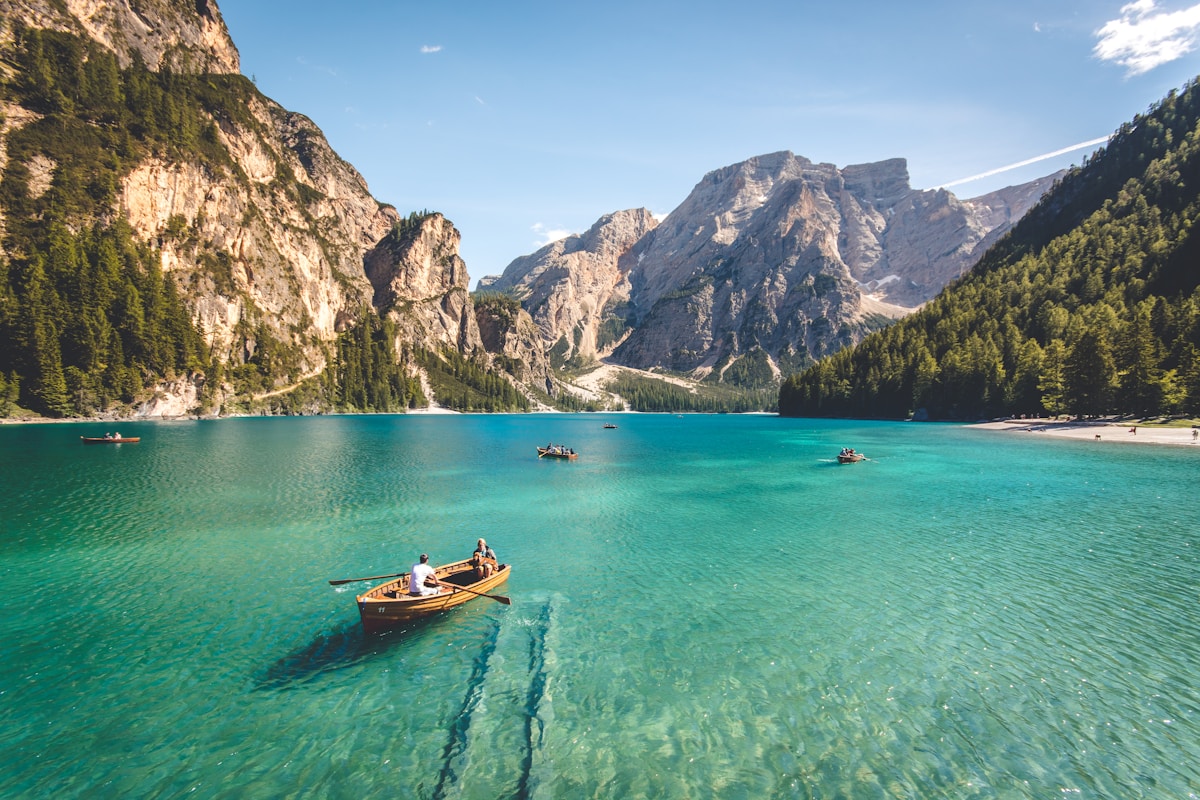{h=640 radius=lg}Adjusting the image
Section titled “Adjusting the image”An image on a line of its own is a block. Attributes go in braces, right after the address:
| Attribute | What it does |
|---|---|
fit=contain | Shows the whole image inside the area. This is the default. |
fit=cover | Fills the whole area, cropping the edges if needed. |
w, h | Width and height, in pixels (480), percentage (50%) or full. |
radius | Rounds the corners: sm, md, lg or pixels. |
shadow | Shadow: sm, md, lg or none. On its own, it means md. |
border | Border, such as border="4 accent". |
opacity | Transparency, from 0 to 1 or as a percentage. |
fit only makes a difference when the area has a different shape from the image, for example when you set both w and h:
::: columns {gap=lg}{fit=contain h=560}{fit=cover h=560 radius=lg shadow}:::To place text next to an image, use columns. See Layout.
Images within text
Section titled “Images within text”An image inside a paragraph flows with the text and is as tall as the letters. Attributes go right after it, with no space:
# PartnersSupported by: {radius=sm} Horizon Foundation {size=2xl}To change its size, change the paragraph size or set h on the image.
Background images
Section titled “Background images”The image attribute places an image in the background of a slide or a block. It covers the whole area and stays centered:
--- {image=https://images.unsplash.com/photo-1501785888041-af3ef285b470?w=1200 color=white align=center}::: box {bg=ink/60 pad=xl radius=lg}# Planning 2027 {size=5xl}Annual leadership meeting {.lead}:::image accepts the same addresses as regular images: https:// or an uploaded image (image=asset:…).
--- {image=asset:3f2b8c1e-7a4d-4e9b-9c2a-1d5e6f7a8b9c}::: box {image=asset:3f2b8c1e-7a4d-4e9b-9c2a-1d5e6f7a8b9c h=400 radius=lg}:::Privacy
Section titled “Privacy”Uploaded images are served from a long, random address so they can appear in your presentation without logging in. They do not show up in searches or public listings, but anyone who has the address can open the image. Do not upload images that contain sensitive information.
Common errors
Section titled “Common errors”| Code | When it happens |
|---|---|
| F301 | Address not allowed: it does not start with https:// and is not an uploaded image (asset: followed by the identifier). |
| F301 | fit with a value other than cover or contain. |
| F209 | Unknown attribute on the image, such as fitt. |